
TRT Inventree Part Creation Tutorial
Go to erp.rockets.wiki and create an account with your Terpmail if you haven't already.
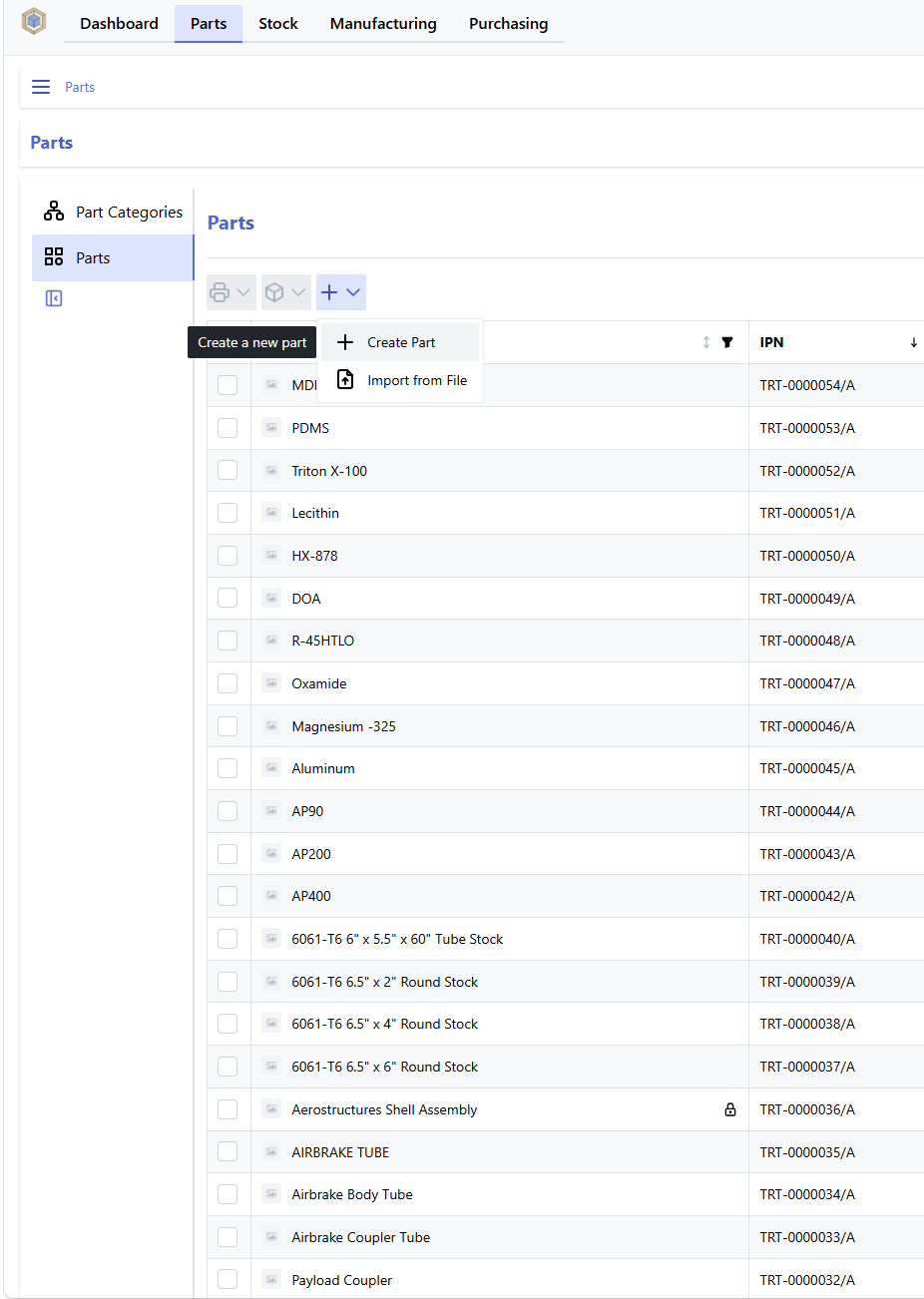
Go to the part page (not part categories page!) and click the plus, then click create part:
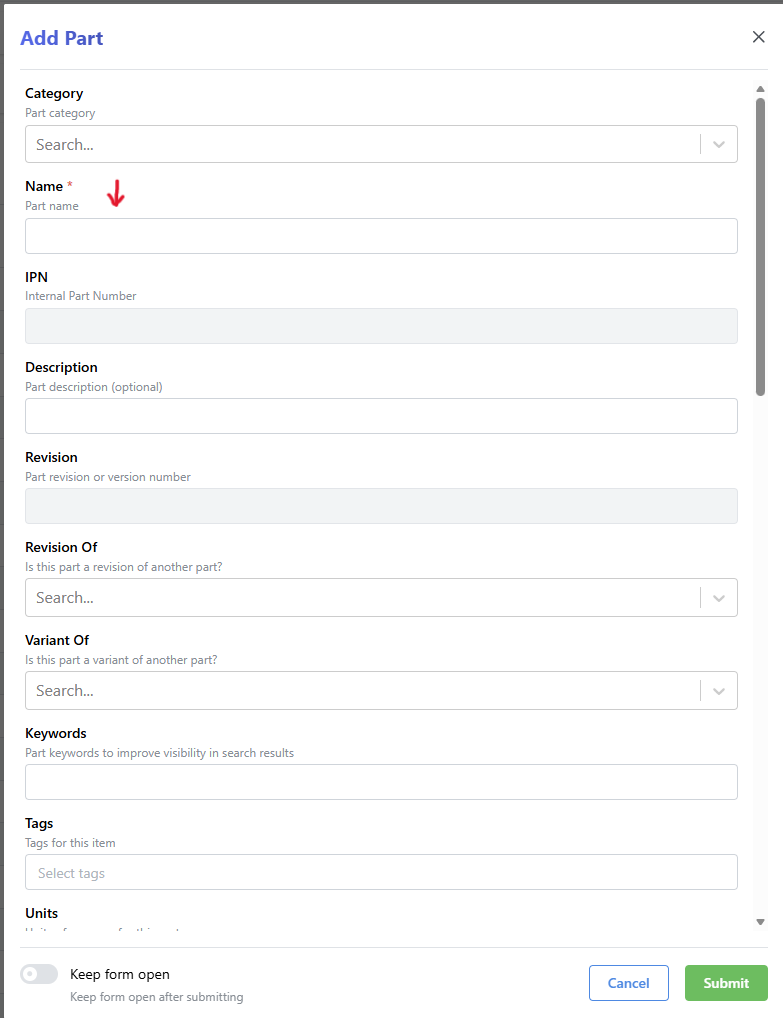
Give your part a name and a category:
Make sure the category is the broadest use of your part; for example, a part used only by a single airbrake assembly can go in Competition Team/Airbrake/Example_Assembly, but a part used by multiple assemblies in the Airbrake should go in Competition Team/Airbrake/General. A part that is used by the whole team competition team goes in Competition Team/General, and a part that the whole team uses just goes in General/.
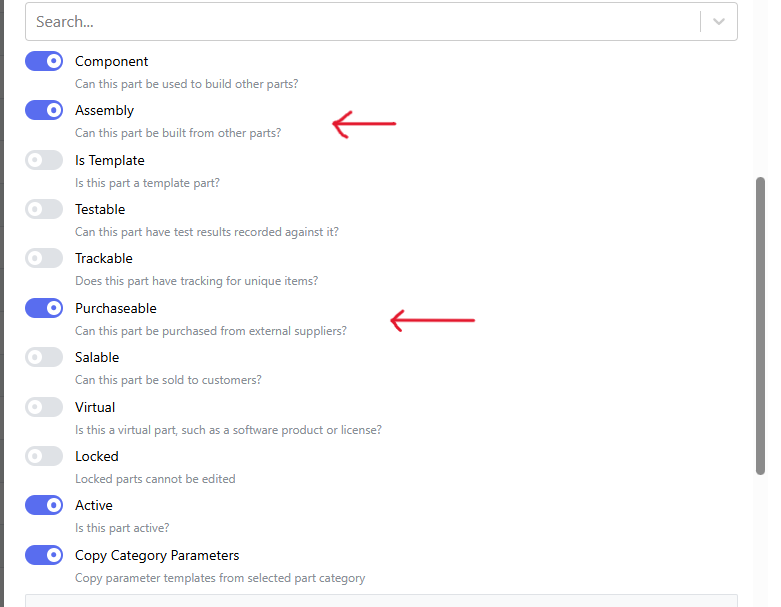
Scroll all the way down. If the part is SRAD, check Assembly. If the part is COTS, check Purchasable:
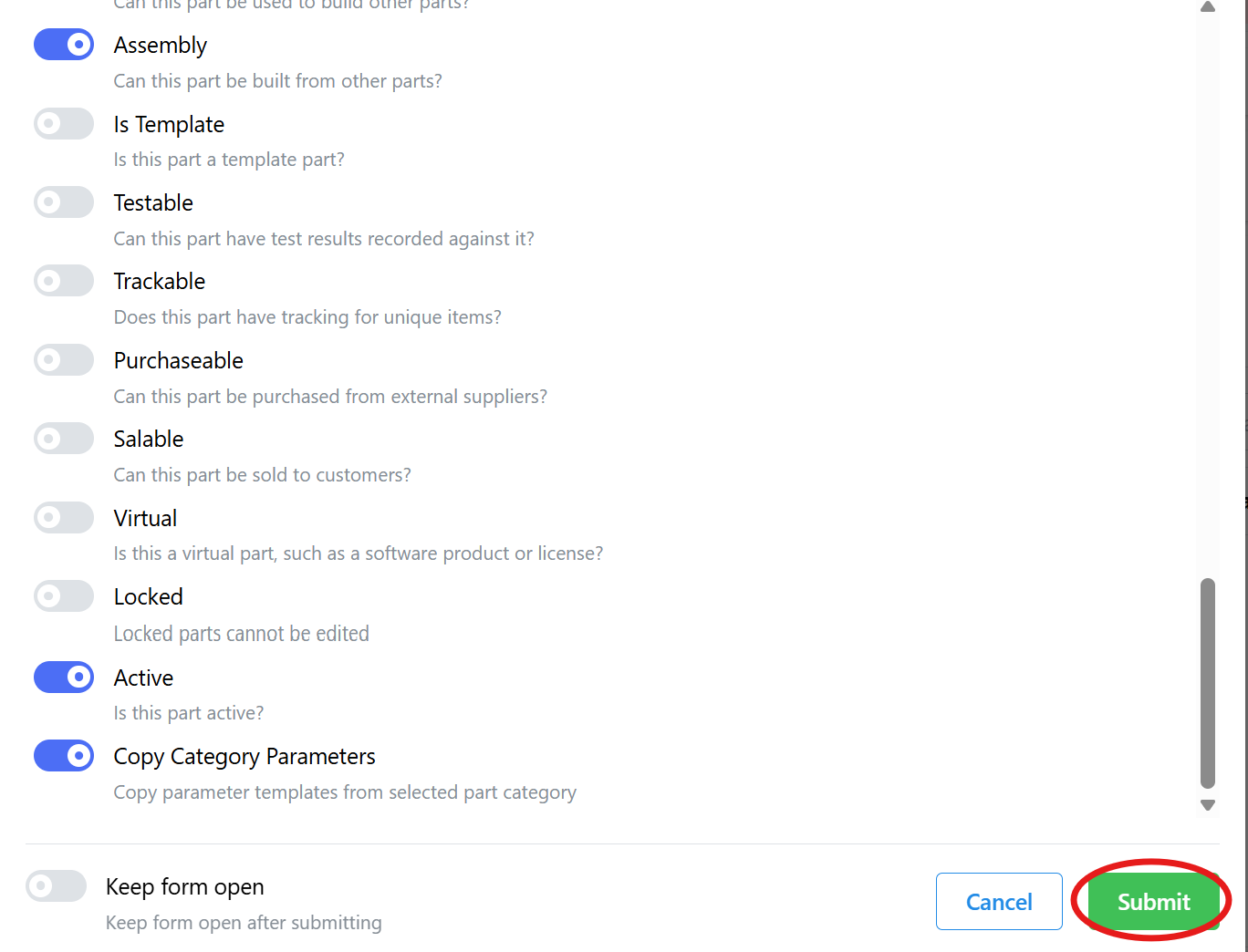
Click Submit to create the part:
PAUSE. If your part is COTS, you are done! If the part is SRAD, then it will also need a bill of materials (BOM) before it is produced. This step can be done any time after the part is created (so if you do not yet know what or how many parts your assembly is made of, you can add them later), but it must be done before the part is physically produced.
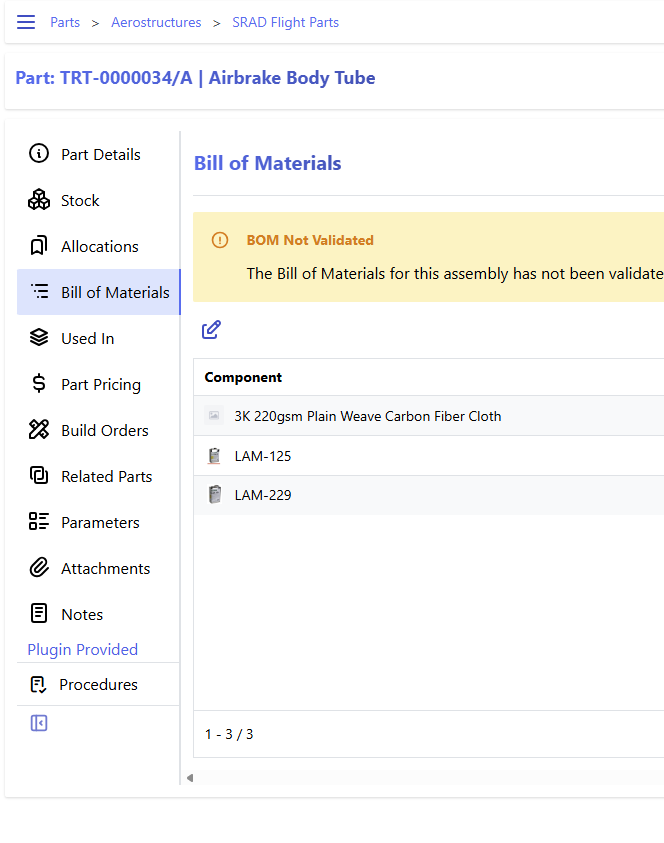
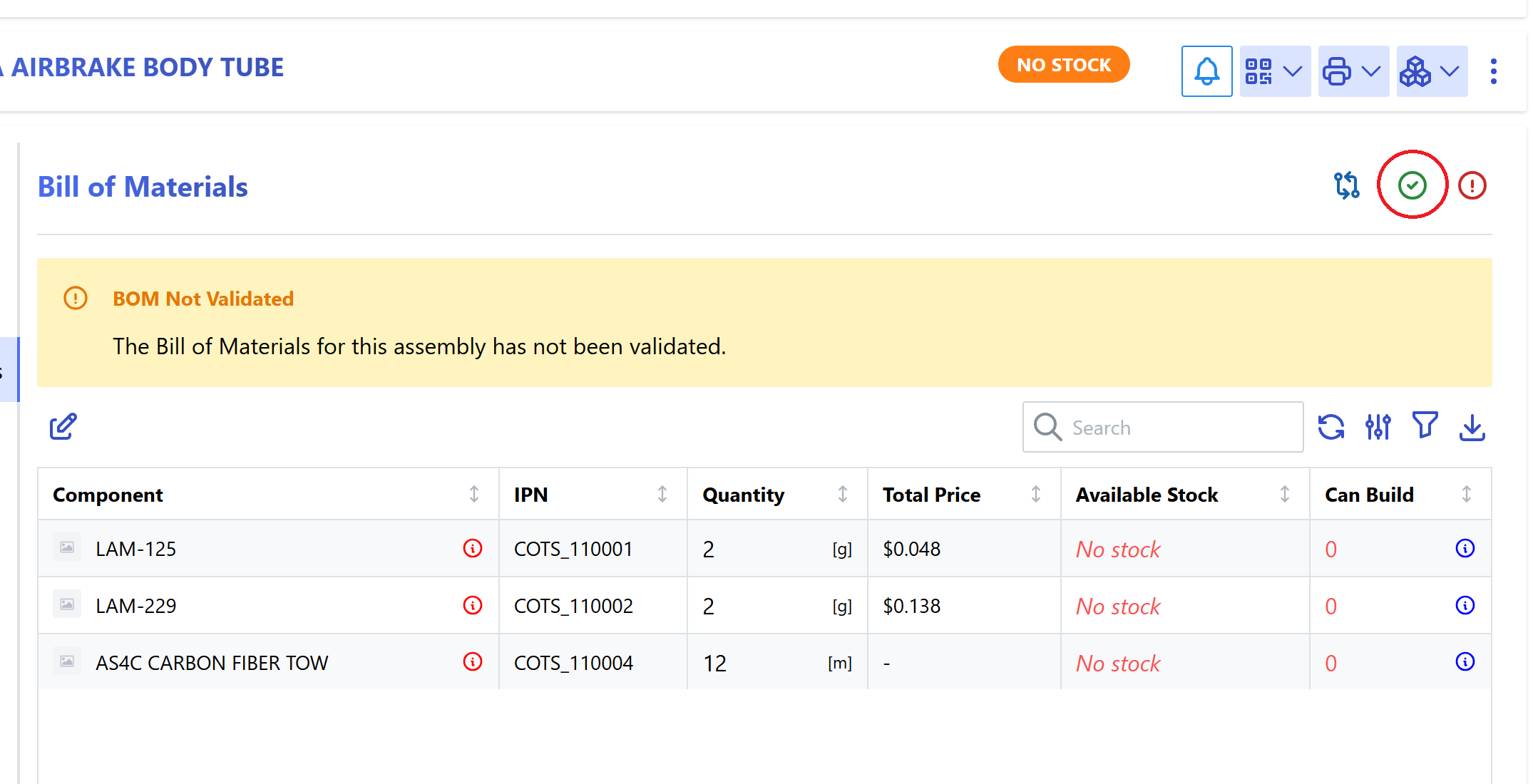
Once the BOM is correct, validate the BOM:
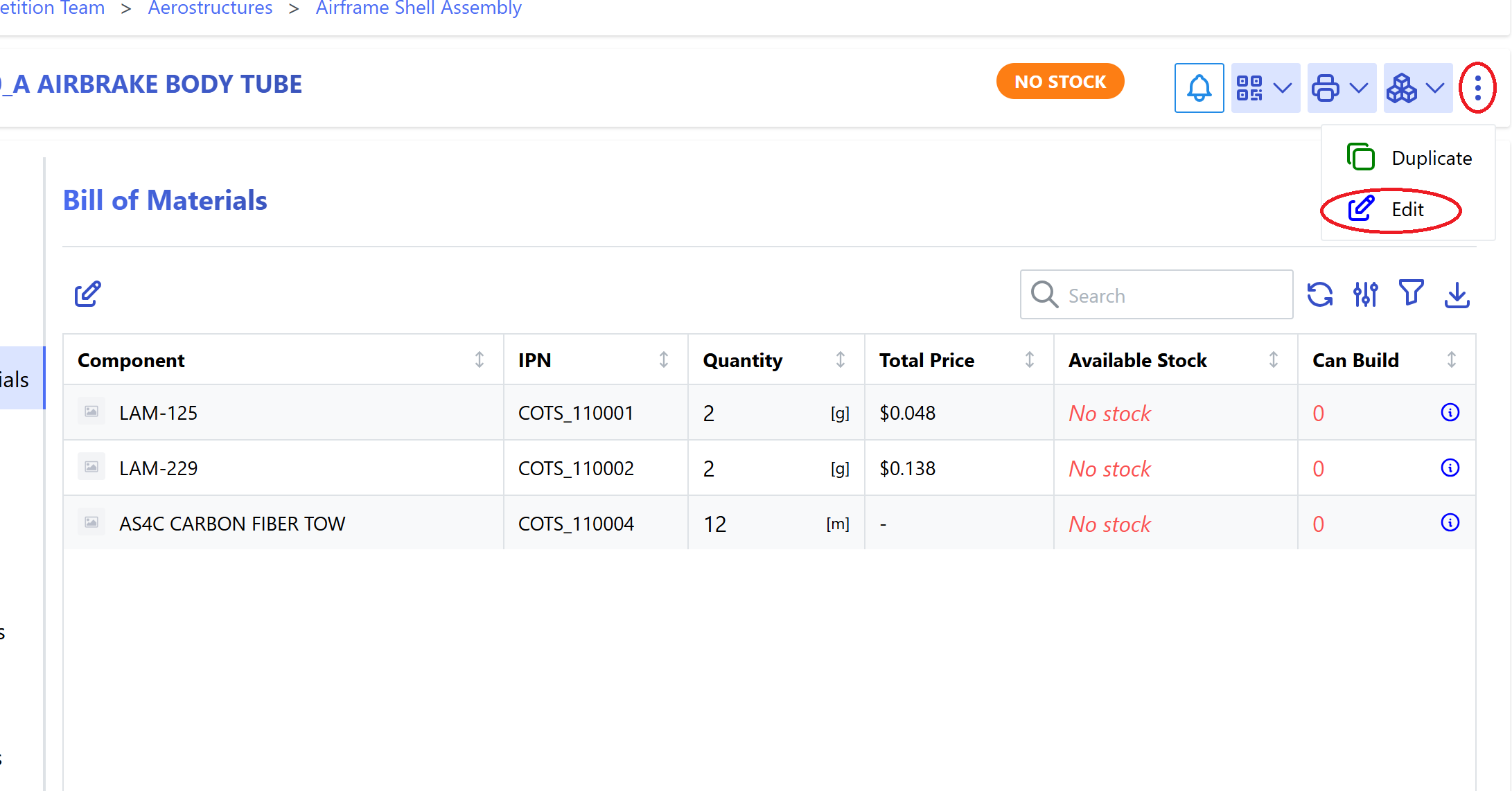
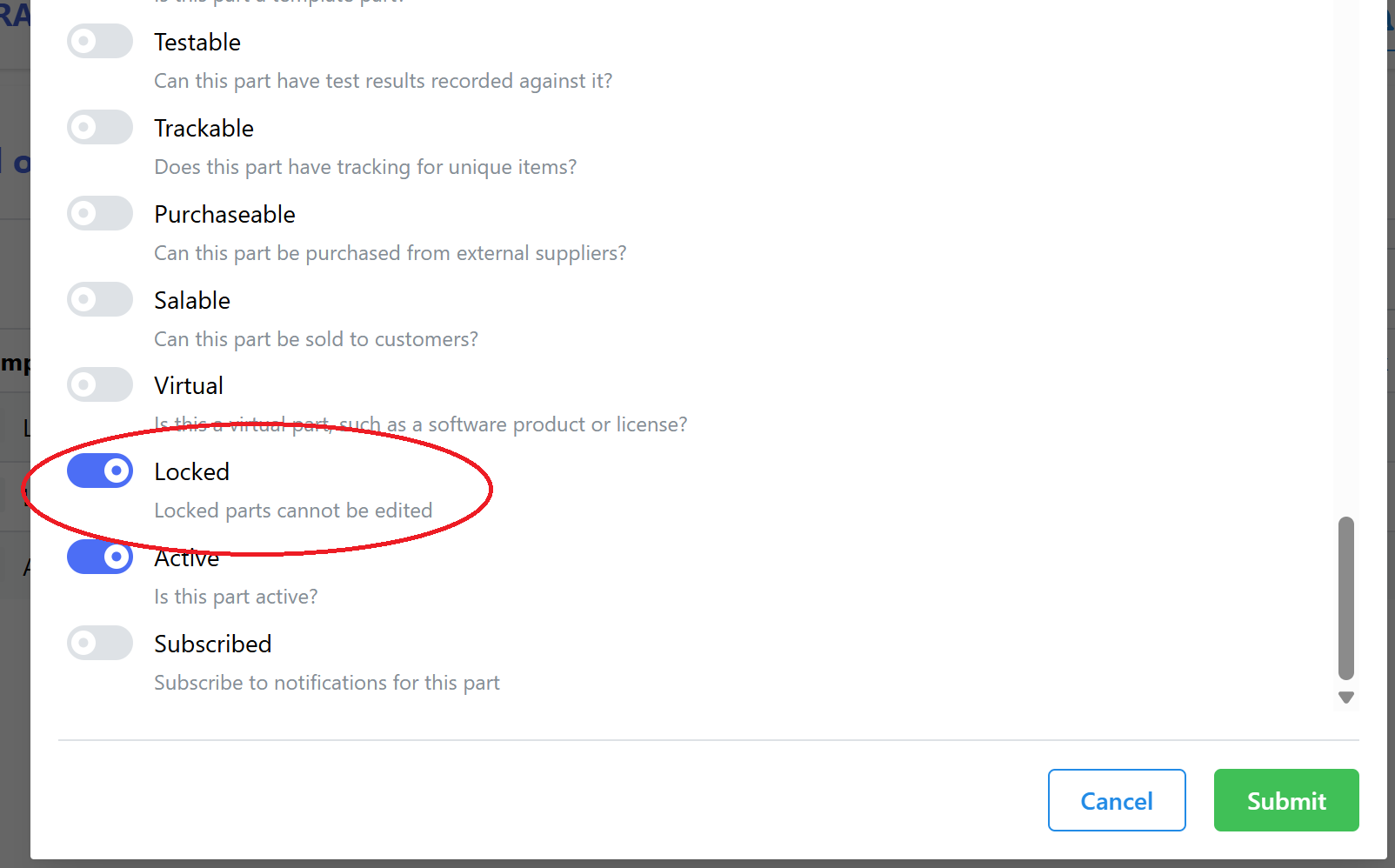
Then lock the part to prevent accidental changes:
No comments to display
No comments to display